About This App
- Name TeamViewer Remote Control
- Category Tools
- Price 0
- Safety 100% Safe
- Developer SolidDevsKit
- Version 1.11.9

Description
TeamViewer is remote access software that lets you see and control another computer or mobile device over the internet. People use it to help family with a computer problem, reach their own PC from somewhere else, or get remote support. Below you'll find what TeamViewer is, whether it is free, how to download TeamViewer for Windows, Mac and Android, the difference between the full version, QuickSupport and Host, and how to log in and connect.
What Is TeamViewer?
TeamViewer (often written Team Viewer or Team View) is a remote control and remote support program. If you have ever asked "what is TeamViewer" or "what is the Team Viewer app", the short answer is this: it shows the screen of another device on your screen and lets you use that device as if you were sitting in front of it.
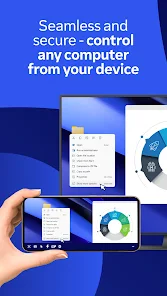
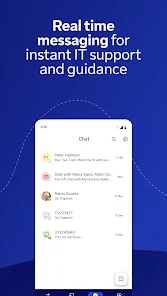
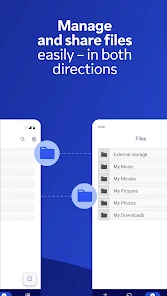
The TeamViewer software works between Windows, macOS and Linux computers, and the TeamViewer app on Android lets you control computers and other devices from a phone or tablet. You can also share your screen with sound and video, send files in both directions and chat in real time during a session.
Typical uses include helping a relative fix a problem, opening files on your home computer while you are away, and giving or receiving remote support. TeamViewer is the official name of both the company and the software, and teamviewer.com is its official website.
Is TeamViewer Free?
TeamViewer has a free version for personal use. According to TeamViewer, the free version is meant for personal users, for example connecting your own devices at home or helping friends and family. If you search for TeamViewer free, TeamViewer free version, TeamViewer free edition or TeamViewer free for personal use, this is the version you want.
Using TeamViewer for work, for an organization, for supporting clients or to earn money requires a paid license. Feature sets also differ between versions and license levels, and paid licenses unlock additional features. So the answer to "is TeamViewer free?" is yes for personal use and no for commercial use.
How to Download TeamViewer
TeamViewer is available for Windows, macOS, Linux, Android, iOS and Chromebooks. Choose your device below.
TeamViewer Download for Windows
- Go to teamviewer.com and open the download page for Windows.
- Download the TeamViewer installer and run it.
- When the setup asks how you will use it, choose personal or non-commercial use if that applies to you.
- Start TeamViewer. You will see your ID and a password; these are what another person needs to connect to your computer.
This works for a TeamViewer download on Windows 11 and Windows 10. If you searched for "TeamViewer free download Windows 11", "download TeamViewer for Windows" or "TeamViewer Windows download", these are the steps. Always use the official site, teamviewer.com, and avoid copies hosted elsewhere.
TeamViewer for Mac
- Open the TeamViewer download page for macOS on teamviewer.com.
- Download the TeamViewer package and open it to install.
- macOS asks you to allow permissions such as Screen Recording and Accessibility. TeamViewer needs them to show and control the screen.
- Open TeamViewer and note your ID and password, or enter a partner's ID to connect.
This applies to TeamViewer for Mac and TeamViewer Mac downloads in general.
TeamViewer on Android and iPhone
- Open the Google Play Store on your phone or tablet, or the App Store on an iPhone.
- Search for "TeamViewer Remote Control".
- Tap Install and wait for the TeamViewer app download to finish.
- Open the app and follow the prompts to connect.
The TeamViewer app runs on Android phones, tablets and Chromebooks. The safest way to get the TeamViewer app is directly from Google Play or the App Store, which always give you the official, current version.
Older Versions: TeamViewer 11, 12, 14 and 15
Some people search for TeamViewer 11, TeamViewer 12, TeamViewer 14, TeamViewer 15 or "Team Viewer download version 11". Those are older releases. For security and compatibility, download the current version from teamviewer.com instead of installing an old one.
TeamViewer Full Version, QuickSupport and Host
TeamViewer comes in three parts, and the names confuse many people.
- Full version (TeamViewer client): the main program. It makes inbound and outbound connections, so you can connect to other devices and others can connect to yours. Unattended access is possible.
- QuickSupport: a lightweight program that needs no installation. The person who needs help runs it and gives the ID and password to the helper. It is not meant for unattended access. You may also see it written as TeamViewer QS, TeamViewerQS, Team Viewer Quick Support or TeamViewer QuickSupport.
- Host: built for unattended access only. It accepts connections to a device, for example a computer you want to reach from anywhere, but it cannot make outbound connections. People look for it as TeamViewer Host, Team Viewer Host download or TeamViewer Host download for Windows 11.
TeamViewer QuickSupport for Mac and Windows
If someone is helping you, the easiest way is QuickSupport. Open the TeamViewer support download page, download TeamViewer QuickSupport for Windows or Mac, run it, and read the ID and password to your helper. The TeamViewer QuickSupport link is usually sent to you by the person helping you.
How the Android App Fits In
The TeamViewer Remote Control app on Android is the app that controls other devices. To control an Android phone or tablet, the device you connect to needs the TeamViewer QuickSupport app installed. That app shows an ID or session code, and you enter it in Remote Control.
TeamViewer Login: Account and Web Client
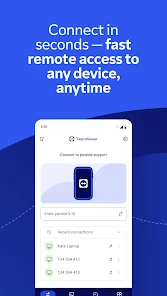
You can make a quick connection with just an ID and password, with no account. A TeamViewer account is useful when you want to save your devices, see your computers in a list and connect to them again later.
To log in, open TeamViewer on your computer or the app on your phone and sign in with your TeamViewer account, or use the TeamViewer login page on teamviewer.com. If you searched for TeamViewer login, Team Viewer login, TeamViewer login my account or www TeamViewer com login, that is the place.
TeamViewer also offers a web client that opens in your browser. You sign in with your account and can reach your devices without installing the full program on the computer you are using. Look for TeamViewer web, the TeamViewer web client or the TeamViewer web app, and use the TeamViewer web login with your account details.
How to Connect to a Remote Computer With TeamViewer
Here is how to connect with TeamViewer:
- Install TeamViewer on your computer. On the computer you want to reach, install TeamViewer or run QuickSupport.
- On the remote computer, find the TeamViewer ID and password on the main screen.
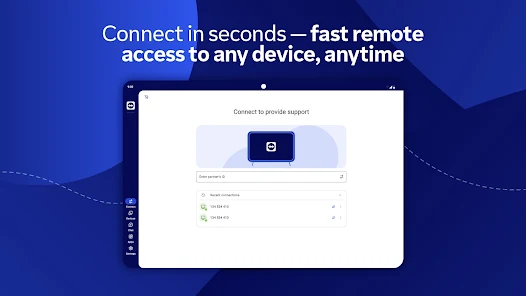
- On your computer, enter the partner ID in the field for controlling a remote computer, then click Connect.
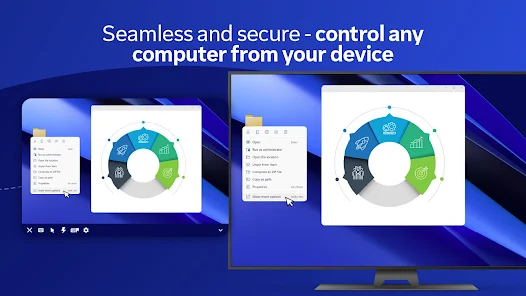
- Enter the password when asked. After that you see the remote desktop and can use the mouse and keyboard.
This is how to connect through TeamViewer for remote control, remote access and remote support. During a session you can transfer files, chat, and share audio and video. To end the session, close the connection window. Only share your ID and password with people you know and trust.
TeamViewer Features
- Remote access and control of Windows, macOS and Linux computers
- Remote control of Android phones, tablets and other mobile devices
- Support for unattended devices such as servers and virtual machines
- Two-way file transfer
- Real-time chat
- Screen sharing with sound and video
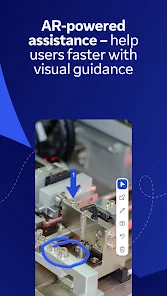
- Augmented-reality visual support in the Android app
Pros and Cons
Pros
- Free for personal use
- Works across Windows, macOS, Linux, Android and iOS
- Quick connection with just an ID and password
- QuickSupport needs no installation for the person being helped
- File transfer and chat built in
Cons
- Work and commercial use needs a paid license
- Beginners can find the three parts (full version, QuickSupport and Host) confusing
- Both sides need an internet connection
- Some features depend on the license level and the operating system
Frequently Asked Questions
Is TeamViewer free?
Yes, for personal use. You can use the free version to connect to your own devices or to help friends and family. Work, client support and any commercial use require a paid license.
Is TeamViewer safe?
TeamViewer is established remote access software from TeamViewer. Download it only from teamviewer.com or from Google Play and the App Store. Never give your TeamViewer ID and password to someone you don't know, because scammers sometimes pose as support staff and ask for them.
What is the difference between TeamViewer and QuickSupport?
TeamViewer is the full program that can connect to other devices and accept connections. QuickSupport is a lightweight program for the person who needs help, and it works without installation.
Do I need an account to use TeamViewer?
No. You can connect with an ID and password. An account is useful for saving devices and for using the web client.
Can I use TeamViewer on Windows 11?
Yes. Download the current version from teamviewer.com and run the installer. Check the TeamViewer website for the latest system requirements.
Can I control a computer from my phone?
Yes. Install the TeamViewer Remote Control app on your Android phone or tablet and connect to the computer's ID. The computer needs TeamViewer running.
Download TeamViewer
TeamViewer is developed by TeamViewer. Use the Google Play or App Store buttons on this page for the mobile app, or download TeamViewer for Windows and Mac from teamviewer.com. Choose your device to download TeamViewer for free for personal use.
Frequently asked questions
If you're an Android user and don't download the app from the official Google Play Store, you may find the installation process more complicated than usual.
We fully understand your concern about safety. We agree that one person wouldn't be too careful in the cyber world. Meanwhile, we are happy to tell you that one of our priorities is to provide our users with safe app files that they can use without any worries.
We guarantee that all the app files we provide originate from official and reliable sources. We promise that they do not contain any malware that will harm your hardware or the safety of your privacy.
We are happy to inform you that the answer is an absolute YES! All the apps on our website are 100% free to download. Besides, you do not have to create an account. Just click on the download button, and it's done.
Recently we received a lot of emails from our users saying they couldn't log in for different reasons, such as "forgot the user name or password" or "had a new phone." We are willing to help you out. Please read the notes below to see what we can do.
To answer this question, please first let us know which account you're referring to.
If you're referring to your account of some app, like your Facebook account or your Youtube account, unfortunately we would not be able to help in this case. We would suggest you turn to the customer service of this application.
This question is essentially quite similar to the prior one. It's a pity that we are unable to help you cancel the subscription to a third-party application directly, while we would suggest you contact its customer service for further information.
Sorry that we are unable to help you get a refund from a third-party application directly. If you wish to get a refund from a third-party app, we would suggest you contact its customer service. We would be happy to provide you the way to contact them.
If you want a refund from us, we should apologize for your confusion. Our service is 100% free, and any payment information is not required.
If you run into any site that asks you to provide your payment information, be careful. Remember never to reveal your payment information to any unauthorized third parties, no matter how tempting their offer may seem.
Sorry that we cannot answer this question directly, as this section only aims to answer some general questions. You may find how to use a certain app by checking our review page.